
Transform Tools

Reference Rotation
Rotate an object about a direction axis and a reference point.
How to Use
- Select the object to rotate.
- Pick the base point, which acts as the rotation center.
- Pick a point for the rotation axis.
- Pick a reference point for the “rotate from” line.
- Move the mouse to set the rotation angle and direction. Snap to a point or press SHIFT to lock angle steps.
CTRL: During the last step, rotates an instance of the object instead.

Local Reference Rotation
A 2-point CAD-like rotation. Rotates an object about a local coordinate direction axis and a reference direction.
How to Use
- Pick the base point.
- Pick the rotate-from point.
- Change the XYZ axis while tracing the rotate-from point:
- X Axis: SHIFT
- Y Axis: CTRL
- Z Axis: Default
- Track the rotation angle and direction. Press SHIFT to restrict angle steps.

Reference Scale
Used to scale an object with a reference length to stretch and a target length; works as a 4-point scale method.
First, select the object to scale.
The tool works by picking two reference distances: one representing a reference length to stretch up or down, and a second one representing the new distance.
How to Use
- Pick the Base point. This point will act as the base for the operation and also marks the original length’s start.
- Pick the second point for the original length line. Note that the direction of the line will be the direction of the operation.
- Pick the Base point for the reference length.
- Pick the End point for the reference length.
- Pressing SHIFT while tracking the second points will restrict the lines to Orthogonal space.
- Pressing SHIFT when activating the tool will keep the object’s proportions for the scaling operation.
- The reference scale tool has three modes:
- Normal: The operation is done in world space.
- In context: The operation is done in local coordinates.
- Xform: Instead of a direct transformation, it applies an Xform modifier to the target object.

Mirror Tool
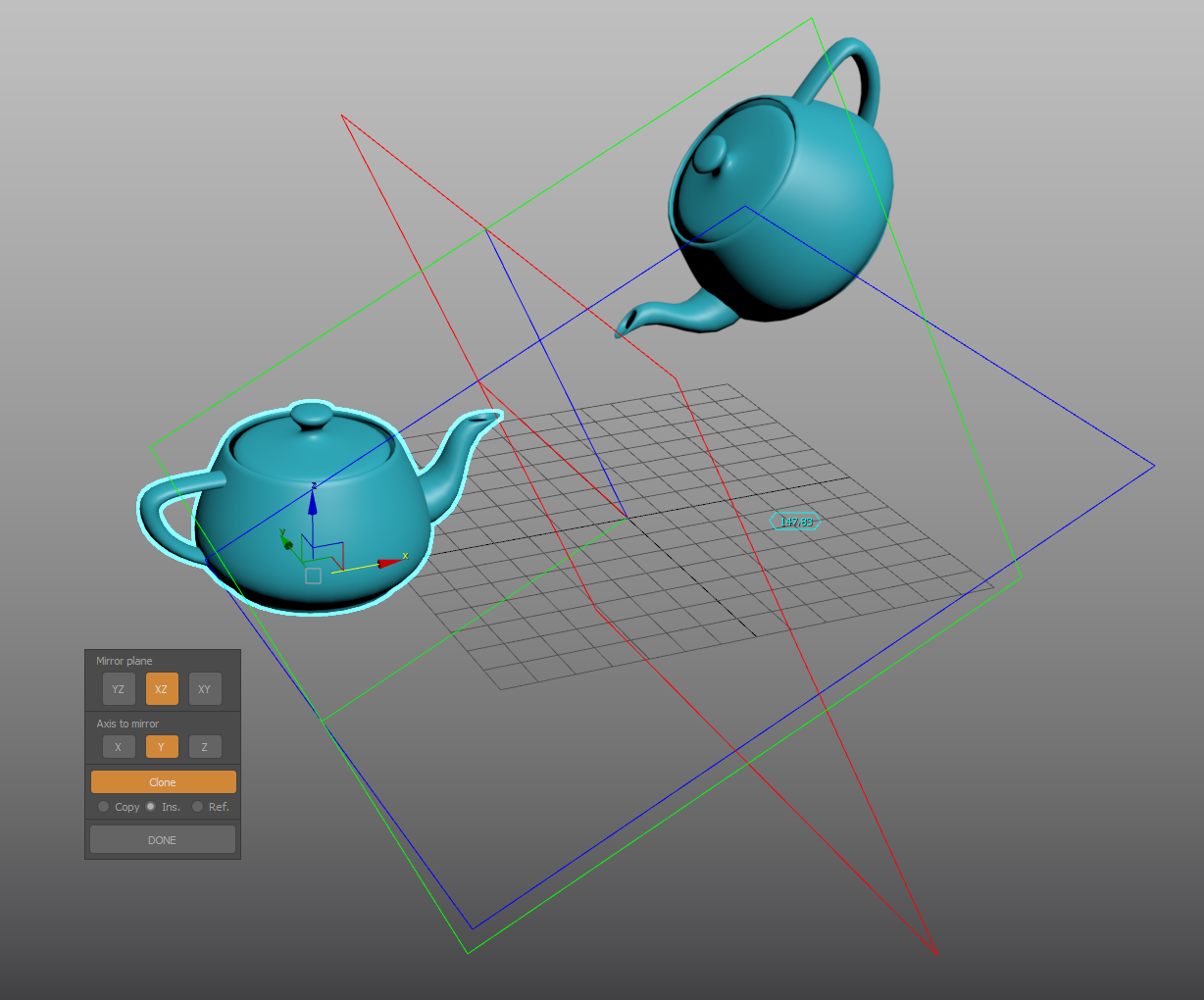
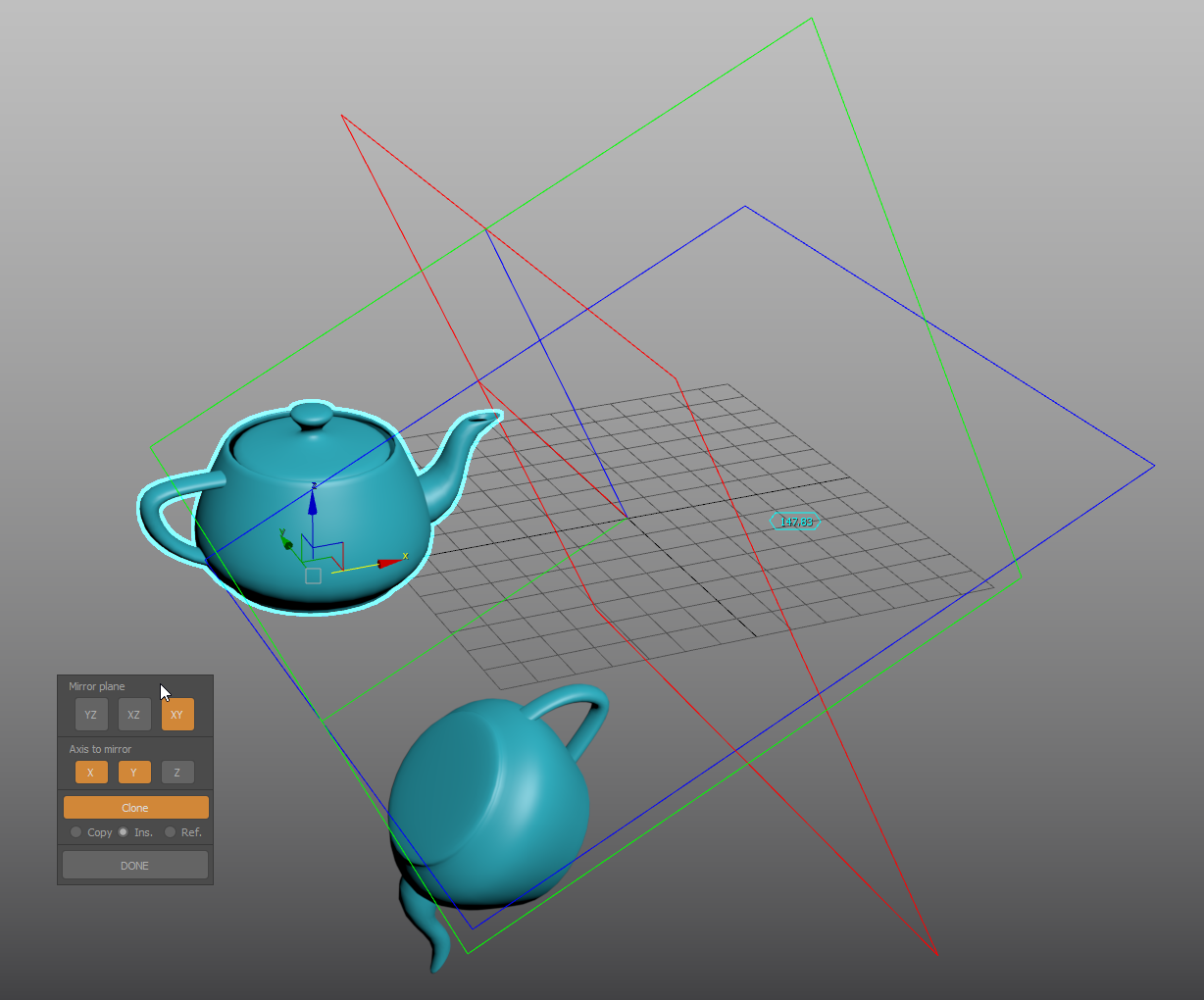
An interactive mirror tool with complex mirror plane alignment.
How to Use
- Start by positioning the reference 3-plane gizmo by picking a center point for the mirror operation.
- Orient the gizmo with points for direction, yaw, pitch, roll, and offset angle.
- Gizmo alignment: Set the gizmo’s start position by picking a direction vector. Use SHIFT for orthogonal tracking, and SHIFT+CTRL to lock the gizmo and track the Z-axis.
- YAW angle: (or XY plane): Use RIGHT-CLICK to skip, SHIFT for angle snapping and ALT to invert direction.
- Pitch (YZ plane, along X-axis) and Roll (XZ plane, along Y-axis): Use RIGHT-CLICK to skip, CTRL to change from Pitch to Roll, SHIFT for angle snapping, and ALT to invert the direction.
- Set or skip the offset angle.
- Finally, select the objects and use the options in the dialog to enable or disable the mirror axes or planes.

Move and Align (1D Align Tool)
Align objects using two directions from a common base point.
How to Use
- Select a target node. Pick a reference point and a target point to displace the node to a new position. This is a free-space operation.
- Pick one point to set a reference direction, and a target point to match the original direction to it.
- Use Right-Click or ESCAPE to end the tool.

3-Point Align
Relocate a node from three pairs of points, from an origin position to a target position.
How to Use
- Select the node you want to reposition
- Pick first (A1) reference position and match it with a destination position (A2). “A” is the base point for the transformation
- Pick second (B1) reference position and match it with a destination position (B2)
- Pick first (C1) reference position and match it with a destination position (D2)
- An axis gizmo will be displayed in the reference and start locations representing the origin (ABC1) and result (ABC2) coordinate systems.
- Left Click once more to invert the transformation, or exit the tool with Right Click

reDimension
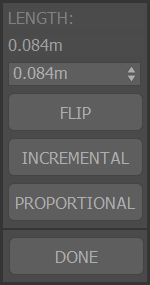
Real world units scaling in a direction. Change object’s height, length or width (or proportional length-width etc..) to a desire dimension.
How to Use
- Select the object and pick a base reference point.
- Pick reference distance / direction end.
- Pressing SHIFT while tracking second point will restrict the direction to orthogonal space.
- Set new dimension on the Dialog UI.
- Incremental option will add / subtract the value form the former distance.
Floater dialog

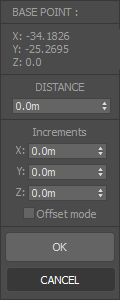
Position Offset
Precise referential movement from a target point, and specified direction
How to Use
- Select objects to move.
- Pick an Origin point for the movement trajectory.
- Pick an End point.
- A dialog will open to set the distance. A reference mark will display the displacement from the Base point along the trajectory line. X Y and Z spinners stets the distance by correlated axis increments; enabling “offset mode” will shift the position of the reference mark from the trajectory
- Incremental mode will change the target point to the Origin point instead of the default End point.
- You can use this tool in editable poly mode, selecting the sub objects to be moved first.

Reference move
CAD-like Move tool that uses two (origin and destination) reference points.
How to Use
- Select the objects you want to move.
- Start the tool; Pick an origin ref. point (be sure to enable snaps)
- Pick a destination point to displace the origin point to.
Press SHIFT (for copy) and ALT (for instances) when starting the tool to clone the source object instead of moving it.

Swap transform
Select a collection of objects (will follow the selection pick order) and cycle their transform from one to the next.

Random swap transform
Randomly swap position, rotation and scale between the selected objects.
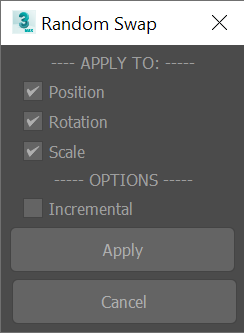
Floater dialog
Random transform
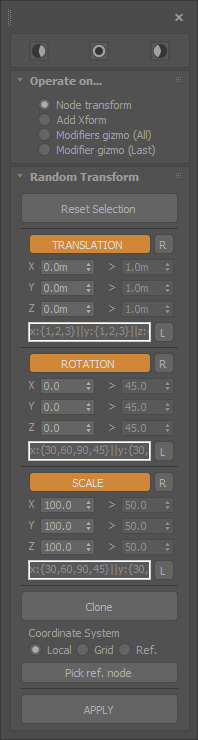
Tool packed with several options to randomize and clone nodes.
- Can be used to directly modify the node transform, add an XForm modifier, or transform applied modifiers gizmo’s.
- Set constant, by range or a scripted list of values to apply the transform.
- Apply the transform in Grid, Local, or Reference coordinate system. To use the later mode, pick a reference node first.
Arrange objects

Arrange objects (interactive)
Distribute or redistribute objects (equally spaced) on a linear direction. This variant of the tool tracks the objects new position’s with marks in the viewport
How to Use
- Select the object set to rearrange.
- Pick the direction line START POINT
- Track the end of the line. Before picking the END POINT to finish the operation, use these options:
- Press SHIFT to conform to the underlying surfaces
- Press SHIFT to orient to the underlying surfaces

Arrange objects (real-time)
Distribute or redistribute objects (equally spaced) on a linear direction. This variant of the tool tracks the objects new position’s in real time. it could be slow with complex geometry
How to Use
- Select the object set to rearrange.
- Pick the direction line START POINT
- Track the end of the line. Before picking the END POINT to finish the operation, use these options:
- Press SHIFT to conform to the underlying surfaces
- Press CONTROL to orient to the underlying surfaces

Arrange objects (start-end objects)
Distribute or redistribute objects (equally spaced) on a linear direction. Direction and length of the distribution determined by the position of two objects:
How to Use
- Select the START OBJECT
- Select the END OBJECT
- Select the objects to distribute between them.
Press the TOOL BUTTON+SHIFT to conform and align the objects to the underlying surfaces.

Drop objects
Drop objects on underlay surfaces.
Press SHIFT when activating the tool to align the objects to the surface form.

Align to average normal
Align the selection to the average direction of the selected objects’ positions.
- Reorient the selected objects to the selection average normal.
- The selection normal will try to point upwards.
Press SHIFT at tool activation to change this behavior and point to the group major direction.

Position grid - average normal
Position a new grid aligned to the average normal of the current object’s selection.
- The selection normal will try to point upwards.
- Press SHIFT at tool activation to change this behavior and point to the group major direction.
Works with Editable Poly sub selection.
Align to active grid
Align the selected objects to the active construction grid. Single-click action tool; select the objects and click the tool button to align them to the active grid.